How to Map Allen-Bradley PLC Tags to Ignition Perspective Dashboards: A 5-Step Guide
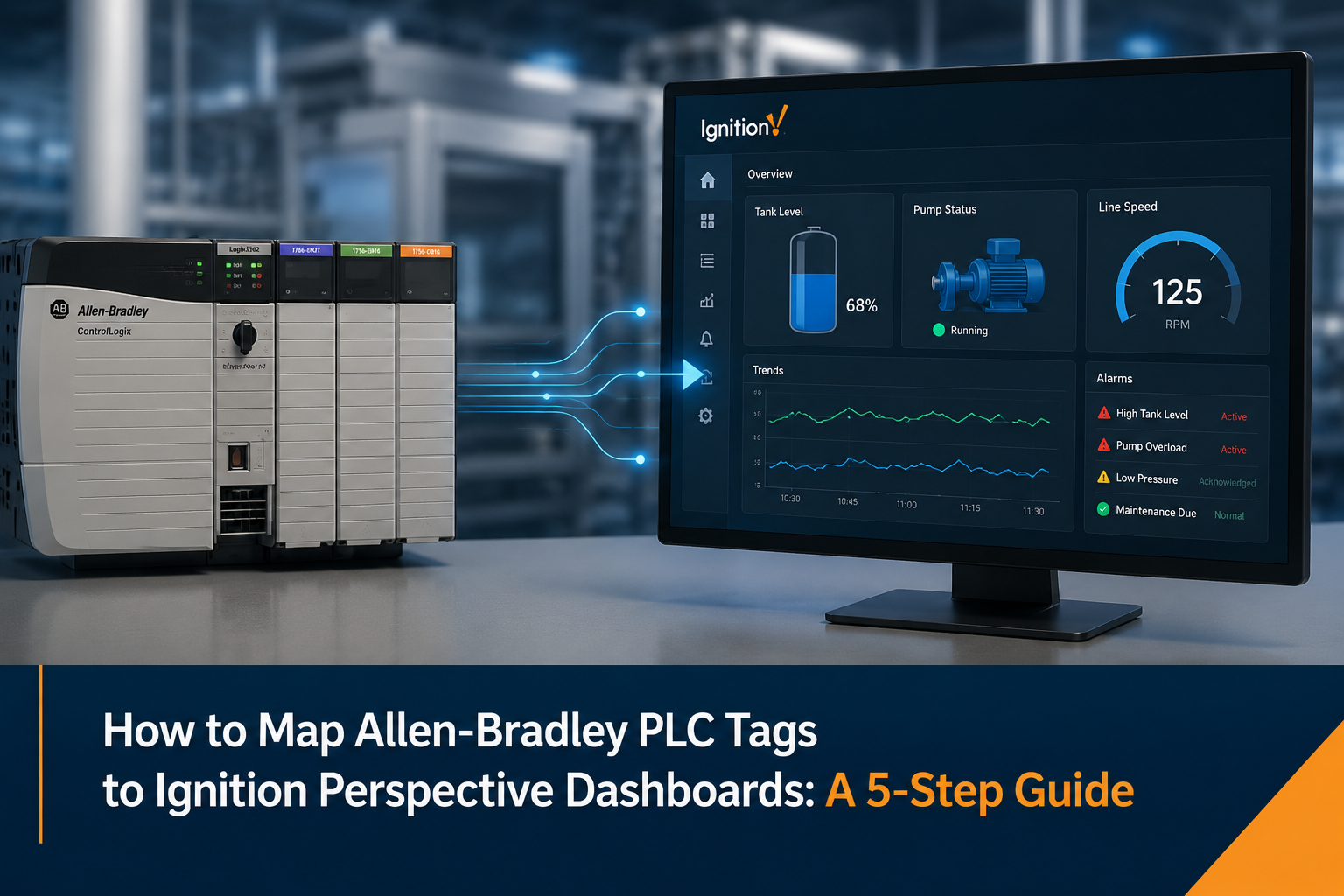
If you’re running Allen-Bradley PLCs in your Connecticut manufacturing facility and want real-time visibility into your operations, connecting those PLCs to an Ignition Perspective dashboard is one of the most powerful things you can do. Ignition, developed by Inductive Automation, is widely adopted across industries for its flexibility, scalability, and web-based access. Paired with Allen-Bradley (Rockwell Automation) PLCs, it creates a robust industrial HMI/SCADA solution that gives your team live data wherever they are.
This guide walks you through the five key steps to map Allen-Bradley PLC tags to Ignition Perspective dashboards clearly and without unnecessary technical jargon.
What You Need Before You Start
Before diving in, make sure you have the following in place:
- Ignition Gateway installed and licensed (Designer Launcher access required)
- Allen-Bradley PLC on the network (ControlLogix, CompactLogix, or MicroLogix series)
- Network connectivity between the Ignition server and the PLC
- Basic familiarity with Ignition Designer and Rockwell Studio 5000 or RSLogix
Step 1: Set Up the Allen-Bradley OPC UA or Allen-Bradley Driver in Ignition
Ignition communicates with Allen-Bradley PLCs through its built-in Allen-Bradley drivers — specifically the Allen-Bradley ControlLogix/CompactLogix driver (using EtherNet/IP) or via OPC UA if your setup requires it.
Here’s how to set it up:
- Log in to the Ignition Gateway web interface (typically at http://[your-server]:8088).
- Navigate to Config > OPC UA > Device Connections.
- Click Create New Device and select the Allen-Bradley EtherNet/IP driver.
- Enter the PLC’s IP address, slot number, and communication path.
- Save and confirm the device shows a Connected status.
Pro Tip: Connecticut manufacturers using ControlLogix L7x or L8x controllers should use the ControlLogix driver and verify the chassis slot number matches your physical rack layout.
Step 2: Browse and Select PLC Tags in Ignition’s OPC Browser
Once your Allen-Bradley device is connected, Ignition automatically browses the PLC’s tag database. This means all controller tags including integers, booleans, real values, and UDTs (User Defined Types) — become visible inside Ignition.
To browse tags:
- Open Ignition Designer and go to the Tag Browser panel.
- Expand the OPC server node and find your Allen-Bradley device.
- You’ll see your program tags and controller tags listed here.
- Right-click any tag and select Create Bound Tag to pull it into Ignition’s tag system.
For large Allen-Bradley programs with hundreds of tags, you can import tags in bulk using Ignition’s Tag Import feature combined with a CSV export from Studio 5000. This saves significant time during Allen-Bradley Ignition integration projects.
Step 3: Create and Organize Tags in the Ignition Tag Database
Ignition uses its own internal tag database to manage data from multiple sources. Once you’ve browsed the Allen-Bradley PLC tags, you’ll create OPC tags (or Memory tags if needed) inside Ignition’s Tag Browser.
Best practices for tag organization:
- Use folders to group tags by machine, line, or area (e.g., Line1/Conveyor/Speed, Line1/Conveyor/Running).
- Set appropriate scan rates for each tag (100ms for fast processes, 1000ms for slower reads).
- Enable history on critical tags to log data to the Ignition database for trending and reporting.
- Use Tag Groups to batch similar tags together and reduce network load on your Allen-Bradley PLC communication.
A well-organized tag structure makes building and maintaining your Perspective dashboard significantly easier especially when scaling across multiple PLCs or sites in Connecticut and across New England.
Step 4: Build Your Ignition Perspective Dashboard and Bind Tags
Now comes the visible part — creating the Ignition Perspective dashboard your operators will actually use. Perspective is the modern, web-based HMI module in Ignition that works on desktops, tablets, and mobile devices without any additional plugins.
To build your dashboard and bind PLC tags:
- In Ignition Designer, create a new Perspective View.
- Drag components onto the canvas labels, numeric displays, gauges, charts, or indicator lights.
- Click a component and open the Property Editor.
- Click the binding icon (chain link) next to a property such as value.
- Select Tag as the binding type and browse to your Allen-Bradley tag path.
- Confirm and preview the live value updating in real time.
For write-back functionality like sending setpoints from the dashboard to the Allen-Bradley PLC use Bidirectional Tag Bindings or script actions on button components. Always configure proper security roles to control who can write values to your PLC.
Common components used in Allen-Bradley Perspective dashboards: Power Chart (trending), LED Display (status indicators), Tank components (level visualization), Numeric Entry (setpoint inputs), and Alarm Status Table (active alarms from your PLC).
Step 5: Test, Validate, and Deploy Your Dashboard
Before rolling out the dashboard to your operators, test everything thoroughly. A misconfigured tag path or an incorrect data type can cause misleading readings — a serious issue in manufacturing environments.
Testing checklist:
- Verify all tag values on the dashboard match values in the Allen-Bradley PLC controller.
- Simulate process changes in the PLC and confirm the dashboard updates in real time.
- Test write-back functionality with proper user role permissions.
- Check alarm displays and confirm they match active alarms in the PLC.
- Access the Perspective dashboard from a mobile device or tablet to confirm responsive layout.
Once validated, deploy the Perspective project through the Ignition Gateway. Users can access it via web browser with no additional software installation required.
Why Allen-Bradley and Ignition Work So Well Together
Allen-Bradley PLCs are the most widely used controllers in North American manufacturing, and Ignition’s native EtherNet/IP driver is purpose-built for seamless communication with Rockwell Automation hardware. Together they offer:
- Fast tag browsing with automatic discovery of all controller and program tags.
- Support for complex data types including UDTs and arrays from Studio 5000 programs.
- Scalable architecture that works whether you have one PLC or fifty across multiple Connecticut facilities.
- Unlimited tags and clients with Ignition’s licensing model — no per-tag fees like traditional SCADA platforms.
Need Help with Allen-Bradley PLC and Ignition Integration in Connecticut?
At Pronto System Solutions, we specialize in Allen-Bradley PLC programming, Ignition SCADA development, and industrial automation integration for manufacturers across Connecticut and the greater New England region. Whether you’re starting a new Ignition Perspective project, migrating from an older HMI platform, or troubleshooting an existing Allen-Bradley and Ignition setup, our team is ready to help.
We work with ControlLogix, CompactLogix, and MicroLogix systems and have extensive experience building Perspective dashboards tailored to real production environments — from food and beverage to precision manufacturing.
Contact Pronto System Solutions today to discuss your Allen-Bradley PLC to Ignition integration project. Visit us at prontosystemsolutions.com or call our Connecticut office to speak with an automation engineer.